Computer Benchmarking
This was a fun little side project that helped distract me upgrade my Homeassistant install, and also a good distraction while I was working on my protogen head.
Problem
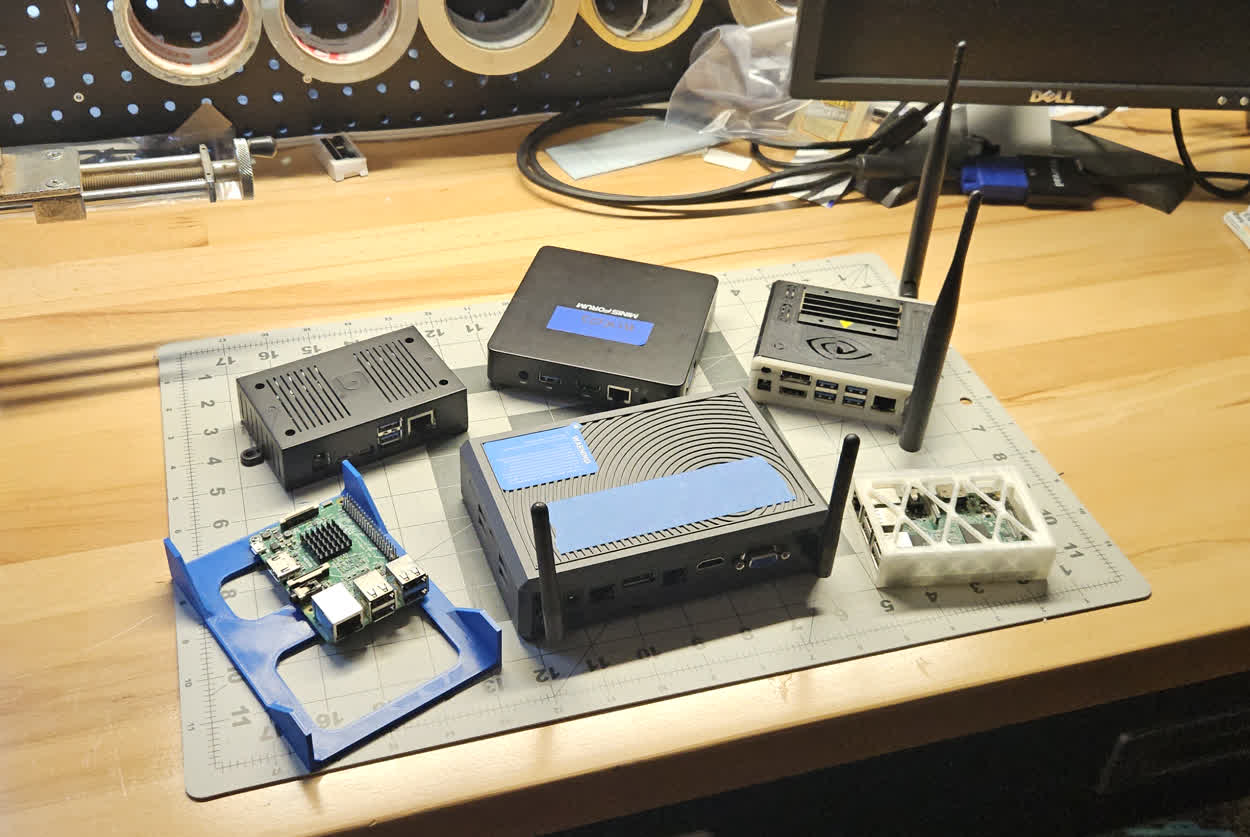
I have a large collection of single-board computers (SBCs) I have acquired over the years. The large majority are Raspberry Pi 3Bs, and the random Raspberry Pi 4 and NVidia Jetson Nano have clear performance improvements over the base model 3B. I then came into possession of several random other devices. These did not have clear comparisons, and some were even x86 instead of ARM. I no longer knew which was better.
I have been having issues with the RPI 3B running my Homeassistant server for a little while. It is fine 90% of the time, but updates will normally cause the whole system to lock up for 20-30 minutes at a time. Also annoying is that the ESPHome integration does not work well. Attempting to compile a hex file for an ESP32 maxes out the memory on the 1GB device. I first attempted to add swap, and this worked for a while! Definitely a good year of extra functionality.
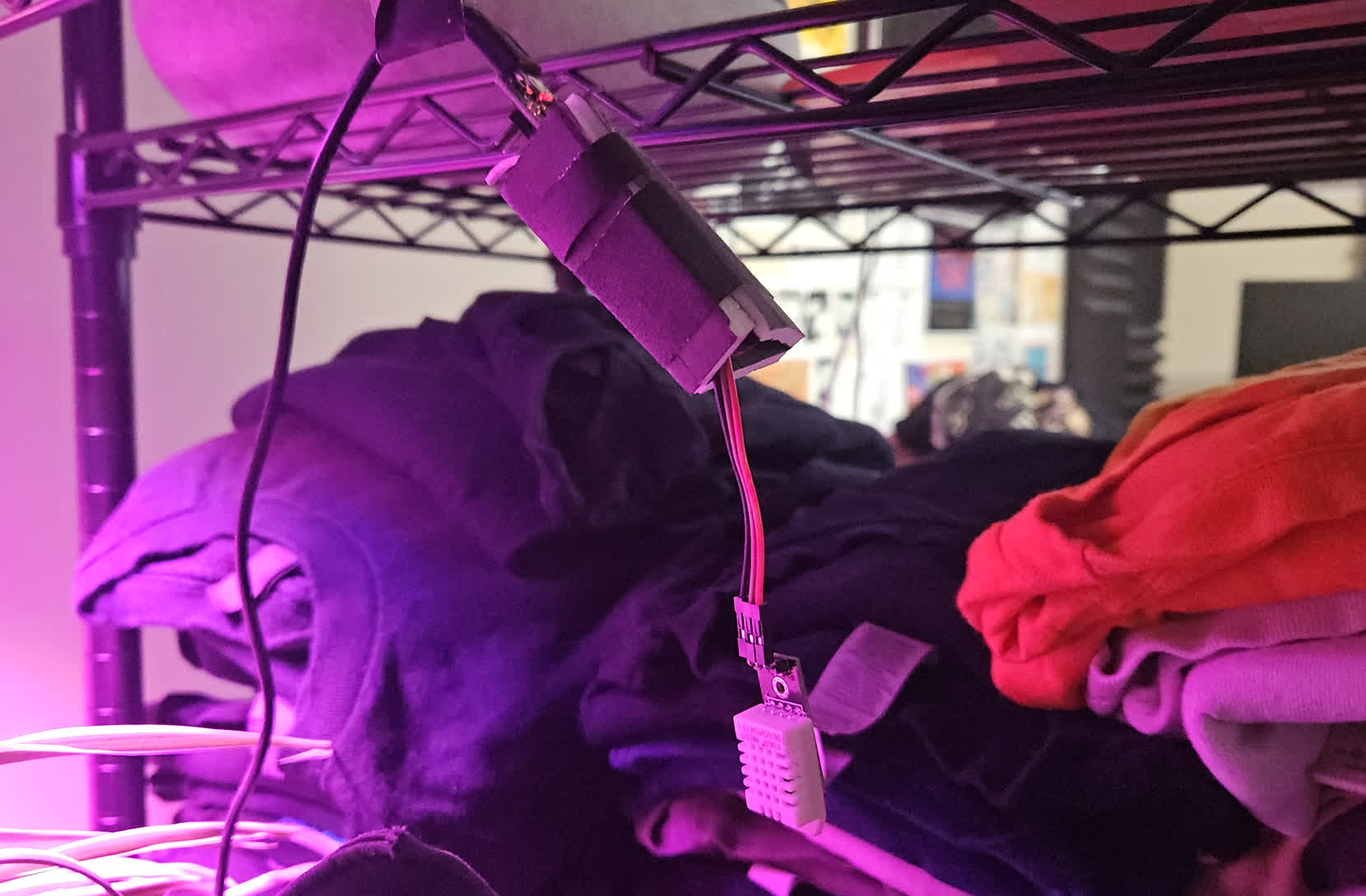
However, at some point my server’s memory footprint grew and attempting to compile in ESPHome would try to move the entire Homeassistant into swap, and it would crash. Then it would come back a few minutes later, and the compilation was failed. I would use the ESPHome docker container on my PC to flash new devices, and then copy the YAML files into the Homeassistant integration for safe keeping.
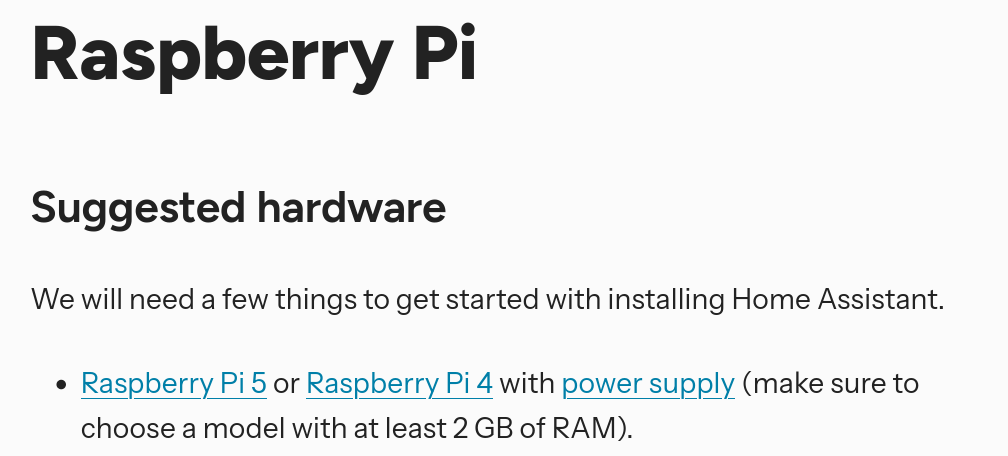
When I started to look into it, I found that in April 2025, the Raspberry Pi 3 was explicitly defined as insufficient and I even saw it in some release notes at some point. I had already planted the seed of needing to replace it, but didn’t know what with.
Solution
Obviously the solution would lie in the form of one of my newly acquired SBCs. The question was which one, and would it even be better? I needed to benchmark the performance and statistics of each new computer so I could select the one that would be best for running HA as a dedicated box. I didn’t want something over-specced (leaving performance on the table), and I didn’t want something that was no better, or even slower than the RPI 3B.
The Stupid Way
I initially thought I could just write some stupid python program and be done. But I realized this was silly. There have to be tons of professional benchmarking tools out there!
The Smart Way
I went hunting for a benchmarking suite. I pretty quickly found Phoronix Test Suite, which has a bunch of pre-made benchmarking suites and even publicly uploaded results to compare your hardware to. This was exactly what I was looking for, and was able to give a picture of real-world performance for various workloads. I started cooking up a nix flake to easily load and run tests, because pretty much every system I was using was running NixOS and I like developing for it.
This quickly turned into a nightmare. Phorinix Test Suite (PTS) has a bunch of dependencies on Ubuntu specifically, and it also tries to be smart and install its own dependencies. Both of these are terrible to do on NixOS, which does not make system libraries available and will fight applications that attempt to install additional things into their environment. I tried getting away with an FHS environment to run my application in, but I still had to provide a million dependencies, and these dependencies seemed to change per-test as each had their own setup and teardown scripts that were just written with no consideration for maintainability.
devShells.${system}.default = pkgs.mkShell {
    packages = with pkgs; [
        phoronix-test-suite
        gcc
        gnumake
        bc
        bison
        flex
        openssl
        pkg-config
        elfutils
    ];

    shellHook = ''
        unset NIX_LDFLAGS
        unset NIX_CFLAGS_COMPILE
        unset NIX_CFLAGS_LINK
        unset LDFLAGS
        unset CFLAGS
        unset CXXFLAGS
    '';
};
I decided to just limit scope and do two tests. Timed linux kernel compilation and ffmpeg for video encode/decode.
I got it running on my M4 Macbook Pro for work, and my Surface Pro 8. It took a few minutes but got running fine, maybe 21 minutes to run all the tests. The reports are nice and it runs the tests a few times to average the scores. A nice plus of this approach was that I could have a single flake command and it would pull from a public github, so I just had to manually type in a single command instead of like authenticating with my personal github account. I tried this on a raspberry pi and…
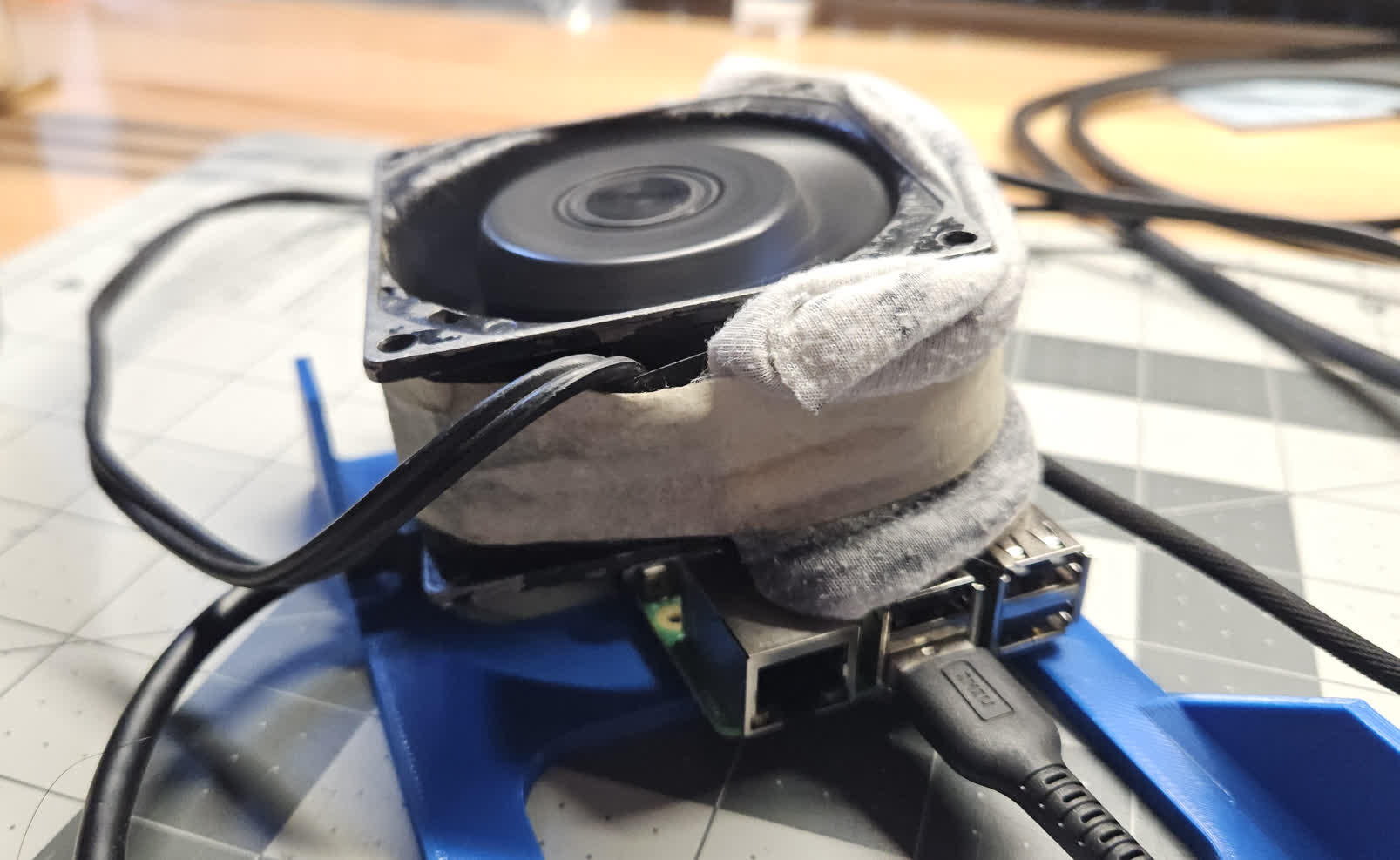
I don’t know what score it got on the benchmark. I don’t know because downloading and building the flake was taking longer than 30 minutes!!! I cant imagine how long the actual compilation of the linux kernel would take, probably over an hour.
I cancelled the command out of rage and went back to the drawing board.
The Smarterer Way
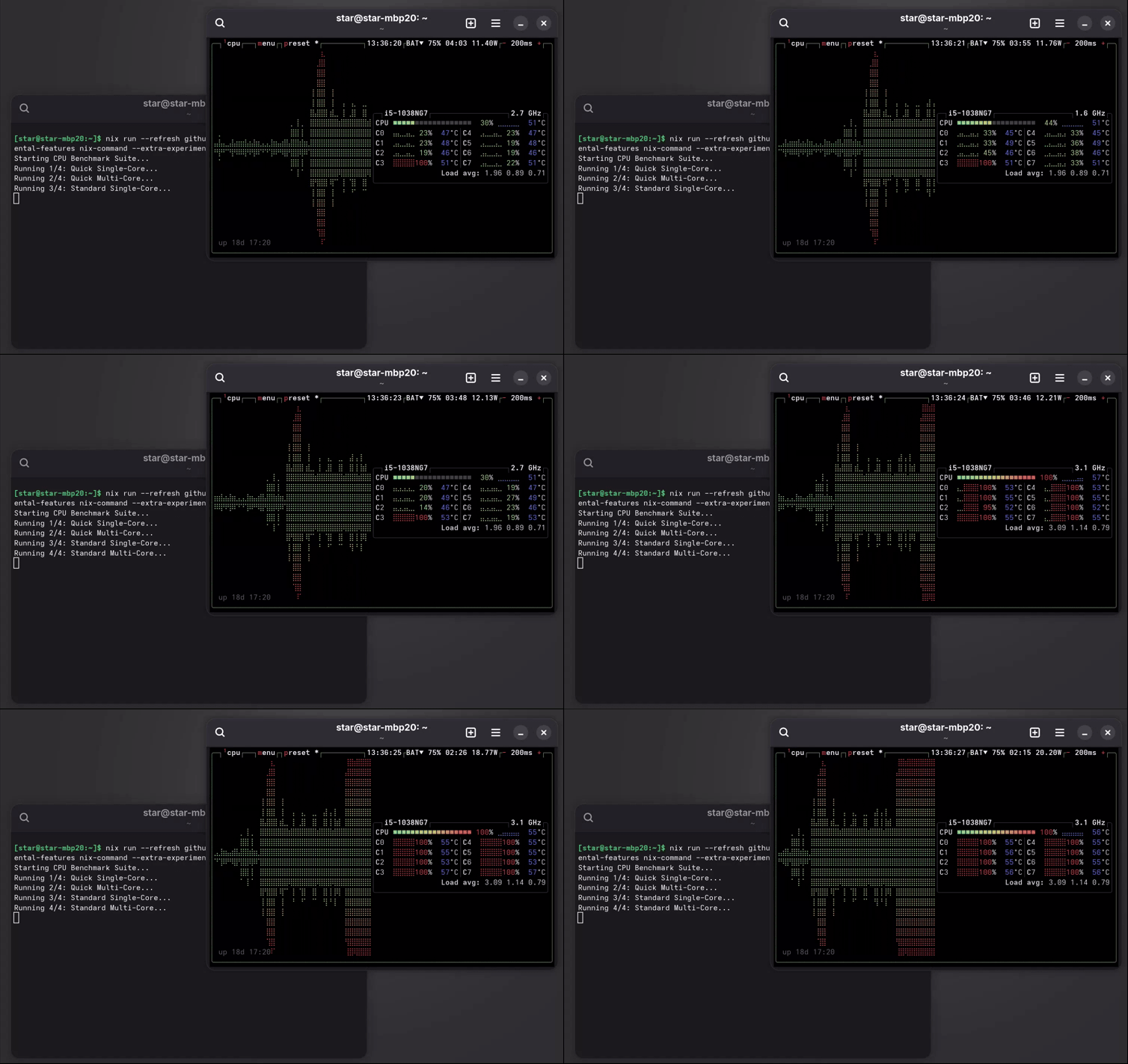
I decided I literally just care about the amount of RAM, number of cores, and single core performance. And importantly, I wanted to do it so fast I didn’t see the SBC start thermal throttling due to the download and waste like 45 minutes of my time.
A single c++ file. Run a couple different kinds of operations. Be done in less than 20 seconds. Thats all it takes. The flake loads fast. Copy the output back to my server manually.
Some Results
So after a week or so of testing, lets find out - which board should I use?
| Hardware | Cores | RAM | Runtime (s) |
|---|---|---|---|
| NVidia Jetson Nano | 4 | 4050824 kB | 18.3511 |
| Raspberry Pi 3b | 4 | 890236 kB | 17.5603 |
| Raspberry Pi 4b | 4 | 1853444 kB | 13.3627 |
| Minisforum Z83-F | 4 | 3934012 kB | 12.0969 |
| Azulle Byte4 | 4 | 3831368 kB | 7.97244 |
| Macbook Pro 2020 | 8 | 16178416 kB | 5.6705 |
| Surface Pro 8 i5-1135G7 | 8 | 7960716 kB | 5.05076 |
| My Desktop | 12 | 32673592 kB | 4.61138 |
Things that affect this score
- Other stuff you are running when you run the benchmark (do you have a browser open?)
- If its a laptop, if its plugged in or not
- How close to thermal throttling you already were
Things that this misses
- Doesn’t cover power draw (important to me!)
- Doesn’t cover video stuff - the jetson is worst?
So what board do I use? For Homeassistant, my major two problems were mostly long compile times and not enough memory. I just needed something with more memory and a little better performance. This seems like the Minisforum Z83-F would be our winner, which is awesome because it also draws very little power with that Intel Atom X5-Z8350. It also has gigabit ethernet, which is a nice plus - update downloads go a lot faster.
Installing stuff on the Minisforum Side Quest
Installing anything was a mild adventure. I actually got two of these, the first one already had Ubuntu running on it, and had no trouble installing NixOS. The second one had Windows 10 running, and was a nightmare to install linux. The computer has a 64 GB eMMC drive, and this is where I wanted to install the OS. First I had to go into BIOS and set the chip from ACPI mode to PCI, or the other way around, or back again. I wish I remembered.
Next, the eMMC is not actually detected by most installers out of the box. The Ubuntu installer does see it, but the NixOS installer didn’t. Unfortunately the Ubuntu live boot disk also was really laggy, whereas the NixOS live boot was super snappy. All I ended up needing to do was open a console in the NixOS live boot and run:
modprobe mmc_block
And then I could format the partition with the disks utility in GNOME. I used this same utility to flash the Homeassistant generic x86_64 image onto the eMMC.
I got it running just fine, and used the web client to restore from one of my daily backups. This was totally awesome! However, I noticed that the built-in bluetooth chip was not detected. This threw me down another adventure trying to get the bluetooth device to be seen in Homeassistant. I was going through the logs of dmesg and lsusb and seeing some messages that things had failed, but maybe that meant it was fine, but it still didn’t show up in the Homeassistant integrations…
sudo dmesg | grep -iE 'blue|firmware'

lsusb | grep -i bluetooth
After a day or so of just failing to get it working, I just gave up. Homeassistant supports bluetooth proxy devices through ESPHome, which is way cooler and can actually put the bluetooth near the device you are trying to connect to - and makes the install independent of the hardware you’re running the server on. Plus its not like I used anything with it.
Anyway, side quest over.
What’s Your Score?
Feel free to run it yourself. You will need the nix package manager installed.
The repo is up here but you can also just paste this command into your terminal. Unless you already have nixpgks 26.05 hash 4c7870105e7f1fdf9c48688c8d7efc21abf0688a then it’ll probably have to download like 180 mb of registry and packages, which may take a few minutes (nix is not storage optimized….just garbage collect it later). You could alternatively clone the repo, modify the revs, and use the stuff you already have. Which would make it a lot faster to run. Also if you have flakes enabled you don’t need to include the flags for those.
nix run --refresh github:starmaid/benchmark --extra-experimental-features nix-command --extra-experimental-features flakes